

Customer Experience
Contractor Appointment Reminders That Reduce No-Shows
How simple, automated text and email sequences keep your schedule full and eliminate costly wasted trips.

Contents:
Key takeaways:
- Use a three-step sequence: Send an immediate confirmation, a day-before preparation check, and a day-of arrival window.
- Include critical visit details: Remind customers about gate codes, pets, parking, and whether someone needs to be home.
- Simplify rescheduling: Make changing appointments effortless and state your cancellation policy clearly to reduce drop-offs.
- Automate your workflow: Connect scheduling directly to your calendar and call handling to save admin time.
A missed visit costs more than the hour on your calendar. It means a drive back out, a customer who feels forgotten, and a schedule that's suddenly full of gaps you didn't plan for. Contractor appointment reminders fix most of this by keeping the customer informed from the moment they book through the morning you show up, so fewer visits get missed and your day stays predictable.

We built UseRoger because we kept hearing the same story from owner-led crews: the phone rings while someone's up a ladder or under a sink, and by the time they call back, the customer has moved on or forgotten the details entirely. Good reminders solve part of that problem. The other part is making sure every call, booking, and follow-up stays connected instead of living in separate notebooks and sticky notes.
If your team is juggling calls, bookings, and site visits with no real system behind it, it's worth seeing how a connected call-and-booking setup works in practice. You can look through what UseRoger offers or reach out for a quick demo whenever it's convenient.
When Should You Send Reminders, and What Should They Say?
Good reminders follow the customer's booking from start to finish instead of showing up as one random text. Send a confirmation right after booking, a day-before reminder with access details, and a same-day update before you arrive. Each message plays a different role, and skipping one usually means a confused customer.
Send an Appointment Confirmation Immediately After Booking
A confirmation message sent the moment someone books gives them something to hold onto right away. It should include the date, time, service, and a way to reach you if something's wrong.
Here's a simple example:
Hi [Customer Name], thanks for booking with [Business Name]. You're set for [Date] at [Time] for [Service]. Questions or need to change anything? Call or text [Phone Number].
This isn't a reminder yet. It's proof the booking went through, and it catches mistakes early, like a wrong date or address, while there's still time to fix them.
Send a Day-Before Reminder With Access and Preparation Details
The day-before reminder is where most no-shows actually get prevented. This is the message that gives customers time to plan their day, move their car, or secure a pet before your crew shows up.
Include anything that affects access:
- Gate codes or parking instructions
- Pets that need to be inside
- Someone needs to be home, or access is fine without them
Example: Hi [Customer Name], reminder that we'll be at [Address] tomorrow at [Time] for [Service]. Please [clear the driveway / secure pets / leave the gate unlocked]. Call us at [Phone Number] with any questions.
Confirm the Arrival Window Before the Visit
A same-day update tells the customer roughly when to expect you, which cuts down on the "are you still coming?" calls that eat into your morning. This doesn't need to be complicated. A short text with a window, like between 1 and 4 p.m., gives people enough to plan around without pinning you to an exact minute.
If your crew runs behind, a quick heads-up text keeps the customer from wondering if they got skipped. Customers who feel informed are far more patient about delays than customers who hear nothing at all.
Copy These Appointment Reminder Templates for Text and Email
These templates work for texts or email reminders. Swap in your own details, and keep any reply instructions honest. Only tell customers to "reply CANCEL" or "reply YES" if your system actually reads and acts on those replies.
Text, day-before: Hi [Customer Name], this is a reminder for your [Service] appointment tomorrow at [Time] at [Address]. Call [Phone Number] if you need to reschedule.
Email, booking confirmation: Subject: Your appointment with [Business Name] is confirmed
Hi [Customer Name], thanks for booking with us. Here are your appointment details: Date: [Date], Time: [Time], Service: [Service Name], Location: [Address]. Reach us anytime at [Phone Number] with questions.
Make Rescheduling Easy and Explain Your Cancellation Policy
Every reminder should make it obvious how to reschedule, because a customer who can't easily change a visit is more likely to just skip it. State your cancellation policy plainly, including how much notice you'd like, without making it sound like a penalty. One line is usually enough: "We ask for 24 hours' notice if you need to reschedule." Clear policies reduce missed appointments because customers know what's expected instead of guessing.
How Can You Automate Reminders Without More Admin?
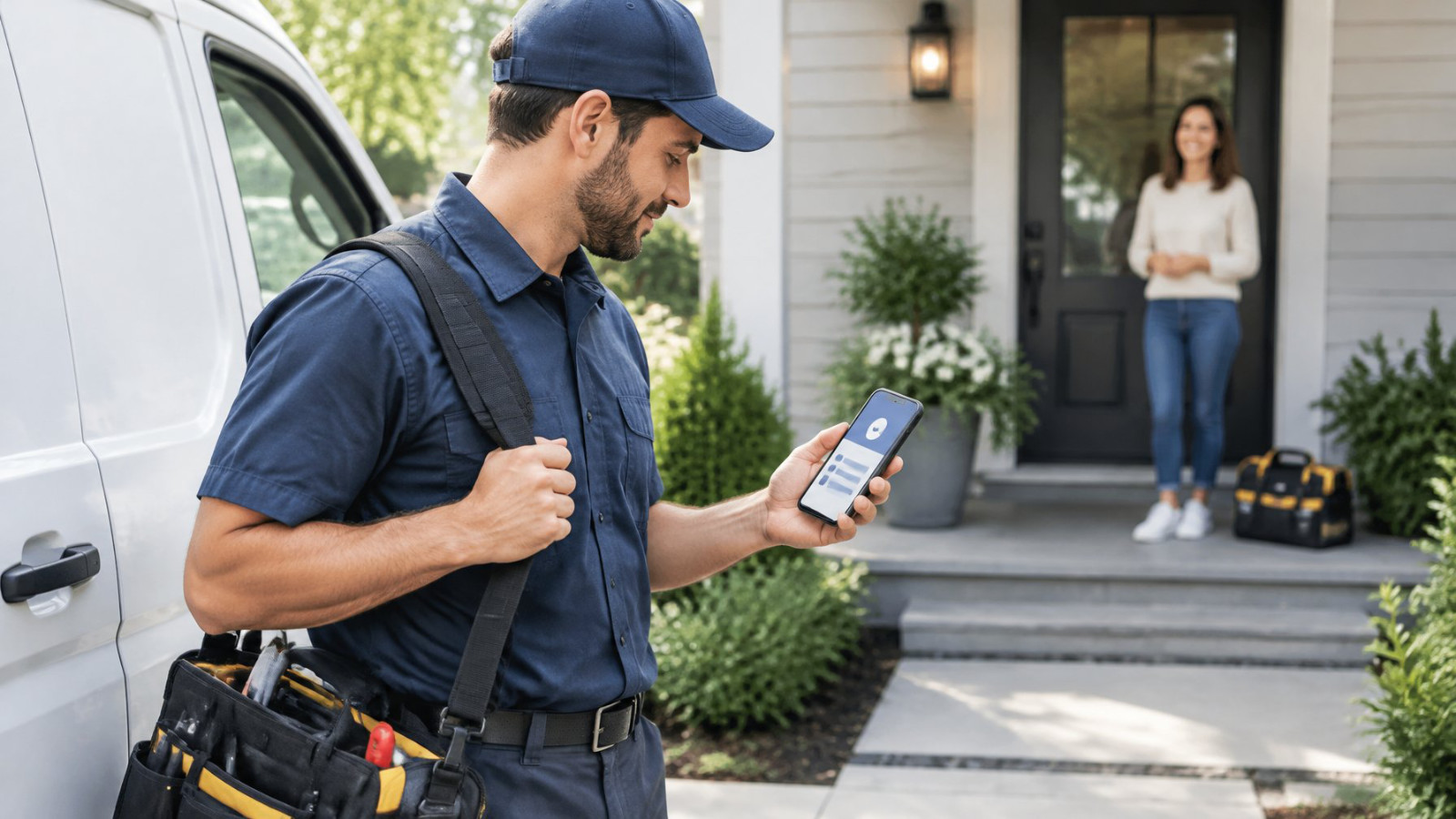
The right setup sends confirmations and reminders automatically, so no one on your team has to remember to type them out between jobs. The goal is a system where booking, scheduling, and customer records all talk to each other instead of living in three different places.
Choose Scheduling Software That Fits Your Customer Workflow
Pick scheduling software for contractors based on how your business actually books jobs, not just its feature list. Some contractor scheduling apps focus narrowly on reminders and calendar syncing. GoReminders, for example, is built around text and email appointment reminders for construction, painting, and roofing businesses, and works well if reminders are your main gap.
Other tools fold in customer management and job scheduling too, which matters more if you're also trying to track leads and follow-ups, not just visit dates.
Connect Booking Details, Calendar Availability, and Customer Records
A reminder system only works if it pulls from accurate, current information. That means your calendar availability, the customer's contact details, and notes from past calls all need to live in one place that updates automatically when something changes.
When a booking changes by phone instead of through an online form, someone has to update it manually unless your system catches that call directly. That's often where reminders quietly break down.
Use UseRoger to Connect Call Handling, Booking, and Follow-Ups
UseRoger supports this whole chain by answering calls you can't take, booking the visit against your connected calendar, and keeping the call summary on the customer's record. If a caller wants a quote, UseRoger can create a lead with the summary attached, so nothing gets lost between the phone call and the job getting scheduled. For recovering missed calls at a contractor business, this matters because a missed call often means a missed booking before a reminder is ever needed.
UseRoger also handles scheduled callbacks differently from site visits. It reminds both you and the customer ahead of a scheduled call, then calls you first. Once you confirm you're ready, it connects the customer. That way you're never caught off guard on a call you agreed to take.
Beyond booking, UseRoger sends the follow-up messages, status updates, and confirmations that keep customers in the loop as a job moves along, which fits naturally alongside the broader shift toward AI for home services that many trade businesses are adopting to handle customer communication consistently.
Assign Someone to Handle Replies, Changes, and Unconfirmed Visits
Automation handles the sending, but a person still needs to own the replies. Decide who checks for reschedule requests, confirms unclear bookings, and follows up with customers who haven't responded by the day before. For a one- or two-person crew, this might just mean checking messages at a set time each morning.
Respect Messaging Preferences and Track Missed Visits
Ask new customers how they'd like to be reached, whether that's text, email, or phone, and stick to it. Some customers don't check email often; others ignore texts from unknown numbers until they recognize the business name.
Keep a simple record of missed visits and why they happened. A pattern (like one road always causing late arrivals, or one reminder type going unanswered) tells you more about what to fix than guessing ever will.
Conclusion
Reminders work best as a sequence, not a single message: confirm the booking right away, remind the customer the day before with access details, and give them a heads-up before you arrive. Clear cancellation policies and easy rescheduling cut down on confusion and missed visits.
Automating that sequence, through dedicated reminder tools or a connected system like UseRoger that also handles your calls and bookings, means fewer things fall through the cracks without adding another task to your morning. The customer stays informed, and you get your schedule back.